Calendar Overview
The Calendar module provides visual scheduling for tasks, events, reminders, and team activities. View your schedule in different formats and manage all time-sensitive items in one place.
Switch between month, week, day, and team views to find the best perspective for your needs.
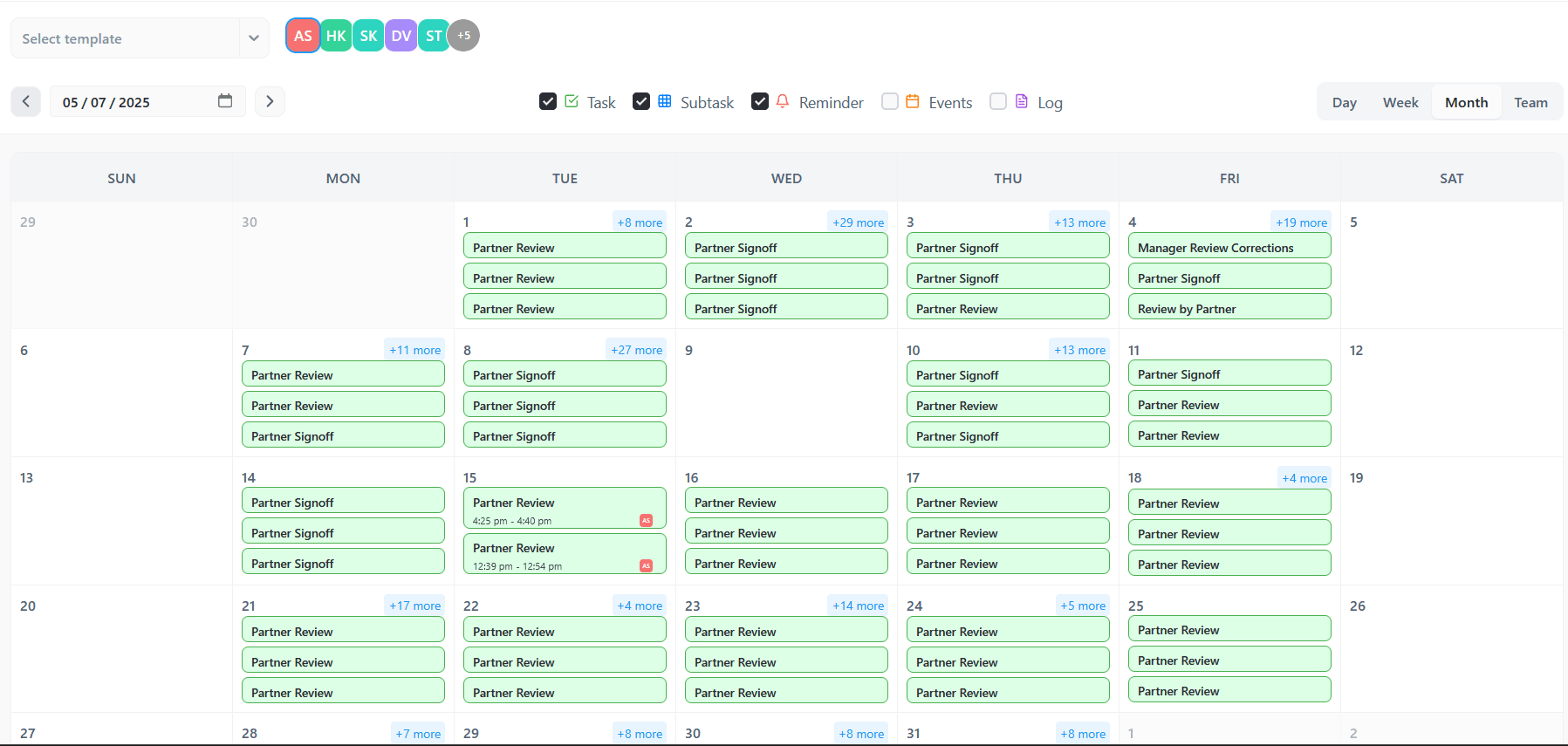
Calendar view interface
Calendar Views
Month View
- Full month at a glance
- All events and tasks visible
- Day-by-day layout
- Click day for details
Week View
- 7-day view with hourly slots
- See event duration
- Easier to spot conflicts
- All-day events at top
Day View
- Single day focus
- Hourly breakdown
- Detailed scheduling
- Best for busy days
Team View
- Multiple team members
- Side-by-side calendars
- Team availability
- Find common free times
Adding Events
Click on Calendar
Click on the desired date or time slot
Enter Details
Fill in event title, start/end time, and description
Add Participants
Invite team members to the event
Set Reminder
Configure notification before the event
Save
Click Save to create the event
Reminders
Set personal reminders to get notifications for time-sensitive items.
Creating Reminders
- Click "Add Reminder" button
- Enter reminder title and description
- Set date and time
- Choose notification type (in-app, email, push)
- Set repeat pattern if needed
- Click Save
Calendar Filters
Filter calendar items to focus on specific types of events or tasks.
By Type
Show/hide tasks, events, or reminders
By Project
Filter by specific project
By Team Member
View specific person's calendar
Color Coding
Items are color-coded for easy identification
Calendar Actions
Drag and Drop
- Move events to new date
- Resize to change duration
- Copy by holding key + drag
Quick Actions
- Right-click for menu
- Edit, delete, duplicate
- Open in detail view
Best Practices
Calendar Usage
- Review calendar daily
- Set reminders for important items
- Keep calendar updated
- Use filters to focus
Scheduling
- Block time for focused work
- Leave buffer between meetings
- Consider timezone differences
- Set realistic durations