What Are Custom Fields?
Custom Fields allow organizations to store structured, business-specific information inside tasks that default fields like title or description cannot cover. They provide the flexibility to adapt Hidesc to your unique workflows, whether you are managing tax filings, software bugs, or creative projects.
Structured Data
Ensure every task captures specific data points like Invoice Numbers, Client Names, or Project Budgets in a consistent format.
Template Integration
Fields are defined at the template level and appear automatically in every task created from that template.
Advanced Reporting
Filter and group tasks by custom field values to generate detailed business insights and performance reports.
Data Consistency
Use dropdowns and checkboxes to prevent manual entry errors and maintain a clean database.
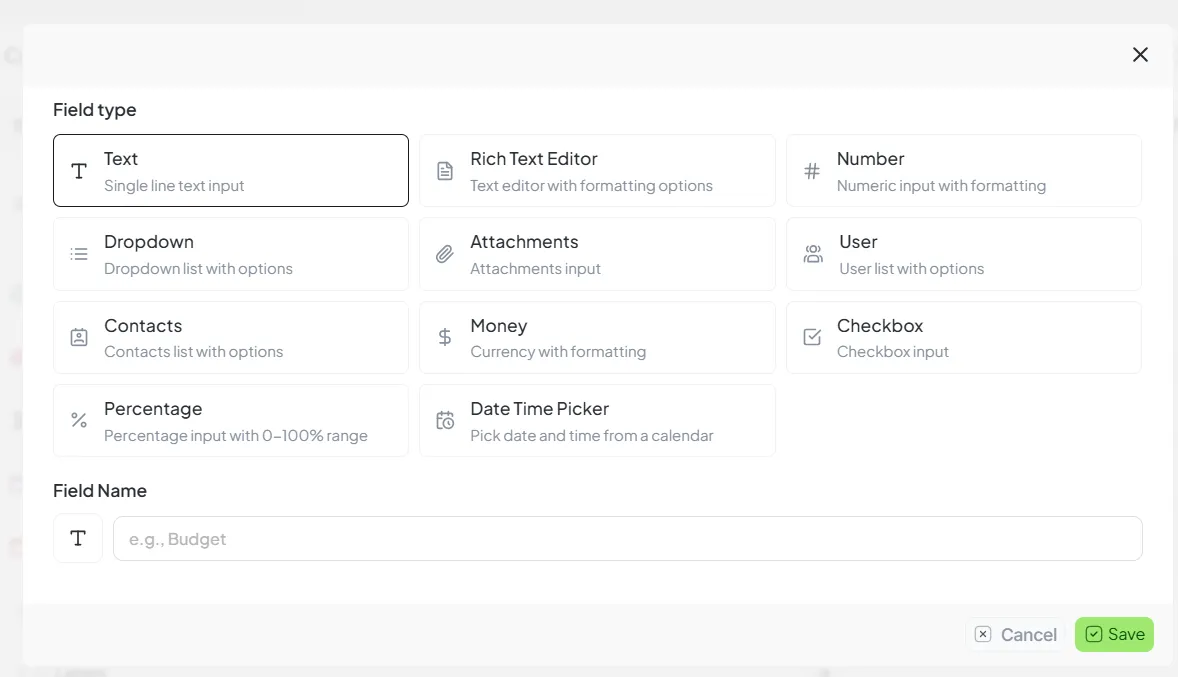
Configuring custom fields in template settings
Field-by-Field Detailed Explanation
1. Text Field
A single-line plain text input used for short, non-formatted values. It is the most flexible field for unique identifiers or brief remarks where formatting is not required.
When to use
- • Input length is short and concise
- • No text styling or line breaks are needed
- • Values are unique to each task (IDs, Codes)
Common Use Cases
Field Preview
2. Rich Text Editor
A comprehensive multi-line text editor designed for long-form content. Use this field when instructions or notes require structure and formatting to improve clarity.
Formatting Supported
Common Use Cases
- • Detailed Task Instructions (SOPs)
- • Internal Audit Remarks
- • Client Requirements & Feedback
- • Meeting Notes / Summaries
Editor Context
- Phase 1: Verification
- Verify all submitted KYC documents
- Phase 2: Filing
- File return and generate ARN
3. Number Field
A strict numeric input designed for quantitative data. This field validates input to ensure no non-numeric characters (like letters or symbols) are saved.
Validation Rules
- • Accepts integers and decimal values
- • Automatically rejects alphabets and symbols
- • Supports mathematical precision
Common Use Cases
4. Dropdown Field
A controlled selection field with predefined options. Dropdowns are essential for enforcing data standards and enabling accurate reporting.
Why Dropdowns Are Important
By restricting input to predefined options, you prevent variation in data (e.g., "In-Progress" vs "Processing"), which is critical for analytics.
| Mode | Behavior |
|---|---|
| Single | Users can select only one value from the list. |
| Multiple | Users can select multiple values (tags/labels). |
Common Use Cases
Option Configuration
Options can be deleted or re-ordered any time.
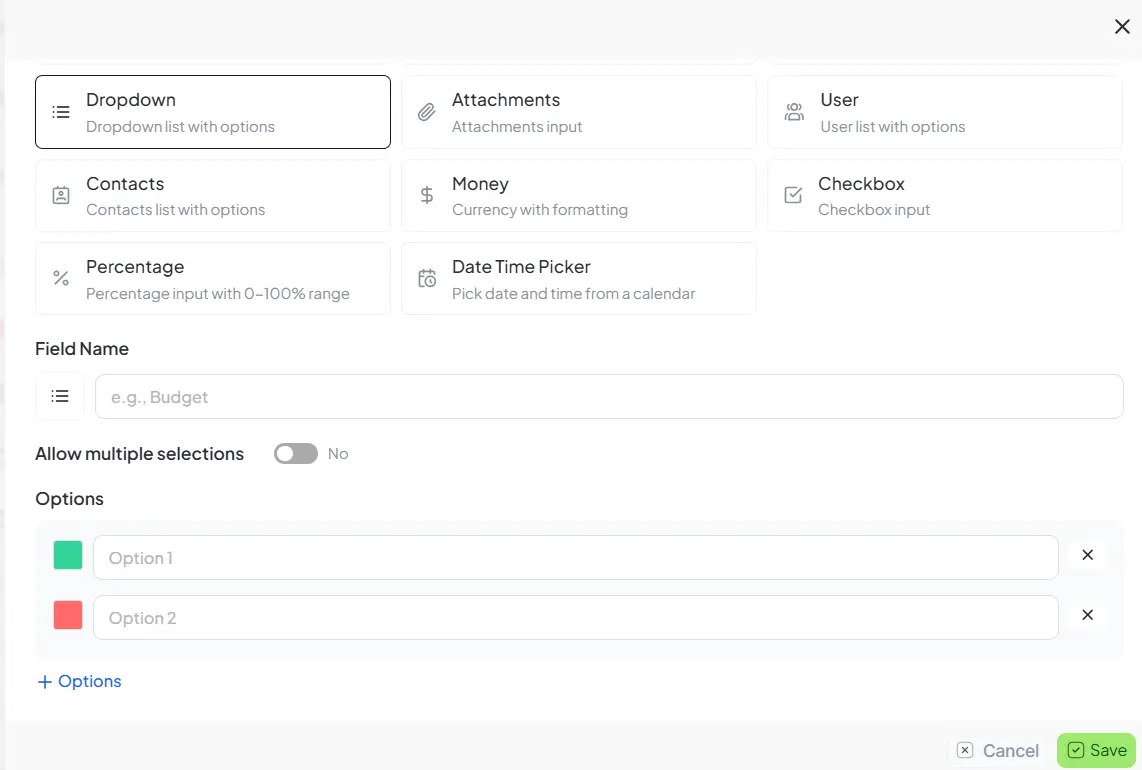
Managing predefined options in a dropdown menu
5. Attachments Field
Allows uploading files directly inside tasks. This ensures that proof of work, signed documents, and technical records are kept within the task's secure environment.
Supported File Types
Behavior
- • Multiple files allowed per field
- • Files are stored securely with Task ID
- • Downloadable by authorized stakeholders anytime
Field Rendering
6. User Field
Tasks often require more than just one assignee. The User field is used to link additional stakeholders, such as Reviewers, Final Approvers, or QA Owners, directly to the task.
Why this exists
It solves the "who else is involved" problem without cluttering the main task assignment, allowing for localized collaboration and accountability patterns.
Shows only users with project access permissions.
7. Contacts Field
Links external entities like Customers, Suppliers, or Candidates directly from your Hidesc CRM. This distinguishes itself from Text fields by being structured and dynamic.
Contact Types Supported
Note: Contacts are global objects. If you update a client's email in the central registry, it updates automatically in every historical and active task where they are linked.
ABC Enterprises
abc@example.com | +91 999 888 7777
8. Money Field
A currency-formatted numeric input designed for financial tracking. It enforces strict precision and ensures that currency symbols are applied correctly based on workspace settings.
Common Use Cases
Precision: 2 Decimal Places
9. Checkbox Field
A binary true/false indicator. Checkboxes are perfect for simple confirmations, approval flags, or "Yes/No" logic within your business processes.
10. Percentage Field
A numeric field constrained strictly between 0% and 100%. It is primarily used for measuring progress, applying accuracy rates, or calculating discounts.
Automatically updates visuals based on numerical input.
11. Date Time Picker
A calendar-based date and time selector. It ensures scheduling accuracy by removing regional format confusion and maintaining timezone awareness.
Syncs automatically with user's local timezone settings.
How Custom Fields Behave in Templates
| Aspect | Behavior |
|---|---|
| Template-bound | Fields added to a "GST Filing" template will only appear in tasks created from that template. |
| Editable per task | While the field exists for all tasks, the value (e.g., Invoice 1 vs Invoice 2) is unique to each task. |
| Validation | Templates can enforce "Required" status, preventing users from closing a task without filling the field. |
| Reporting | Values are searchable and available in the Dashboard and Export modules. |