Documents Overview
The Documents module provides document creation, storage, and collaboration features for your organization. Streamline the process of creating, storing, tracking, and verifying documents throughout their lifecycle.
Maintain a secure, organized, and compliant way of handling documents with version control, sharing, and folder organization.
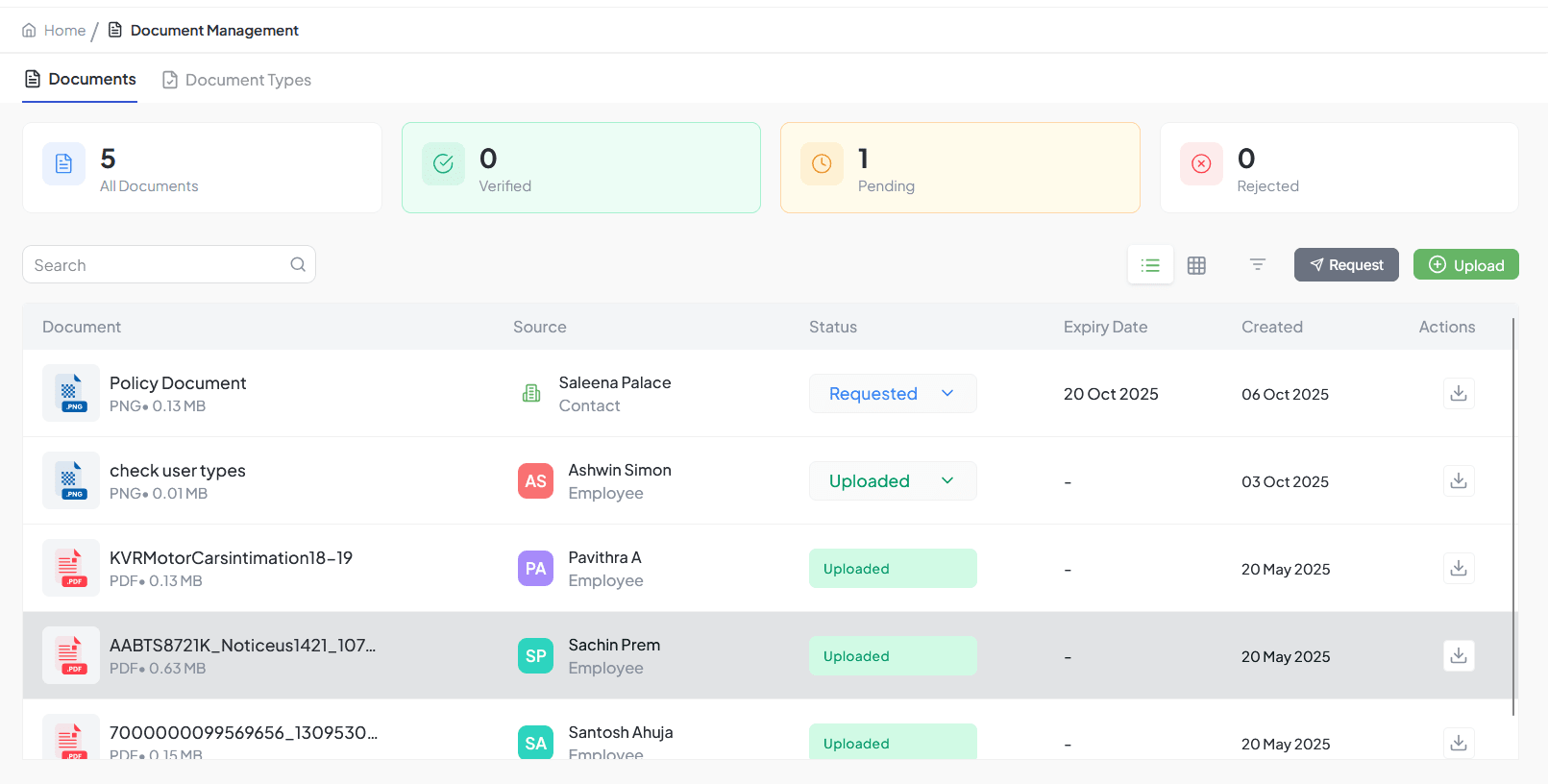
Document list interface
Document List
View all documents, organize and search, and access document versions.
How to Use
- Go to Documents from sidebar
- View document list
- Use search to find documents
- Filter by folder, type, or owner
- Click document to open
Search
Search by name or content
Filter
Filter by folder, document type, or owner
Sort
Sort by name, date, or other fields
Creating Documents
Go to Documents
Navigate to the Documents section
Click Create Document
Click the "Create Document" button
Choose Starting Option
Select blank document or from template
Enter Title
Enter document title and start writing
Auto-Save
Document auto-saves as you work
Document Editor
Edit document content with rich text formatting and media embedding.
Text Formatting
- Headings (H1, H2, H3)
- Bold, italic, underline
- Text color and highlight
- Strikethrough
Structure
- Bullet and numbered lists
- Checklists
- Tables
- Code blocks
Media
- Insert images
- Embed files
- Add links
- Video embeds
Collaboration
- Real-time editing
- Comments
- Share with team
- Version history
Document Sharing
Share documents with team members and set access permissions.
| Permission Level | Access |
|---|---|
| Owner | Full control over document |
| Editor | Can edit content |
| Viewer | Read-only access |
How to Share
- Open document
- Click "Share" button
- Search for users by name or email
- Set permission level
- Click Share to confirm
Version History
Track document changes, view previous versions, and restore old versions when needed.
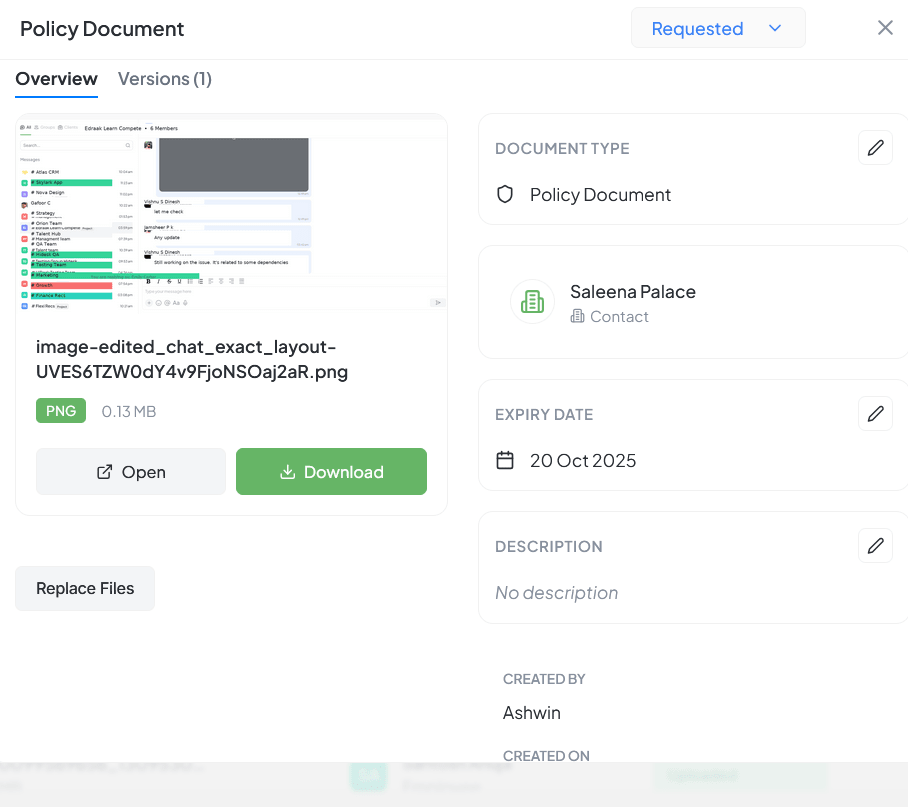
Version history interface
Automatic Saving
Versions are automatically saved as you work
Compare Versions
View differences between document versions
Restore Previous
Restore any previous version of the document
Version Notes
Add notes to describe changes in each version
Multi-Page Documents
Create documents with multiple pages to organize long content and navigate between sections.
Unlimited Pages
Add as many pages as needed to your document
Reorder Pages
Drag and drop to rearrange page order
Individual Page Titles
Give each page a descriptive title
Page Navigation
Use sidebar or tabs to navigate between pages
How to Add Pages
- Open document
- Click "Add Page" button
- Enter page title
- Add content to page
- Navigate using sidebar page list
- Reorder by dragging pages
Document Templates
Create reusable document templates for quick start and standardized formats.
Create Template
- Create document with desired structure
- Click "Save as Template"
- Enter template name
- Add to template library
Use Template
- Click "Create Document"
- Select "From Template"
- Choose template
- Customize as needed
Template Library
Access all saved templates for quick document creation
Template Customization
Modify templates to fit specific needs
Standardization
Ensure consistent document formats across organization
Document Organization
Folders
- Create folders for organization
- Nest folders for hierarchy
- Move documents between folders
Tags
- Add tags to documents
- Filter by tags
- Color-coded tags
Upload Documents
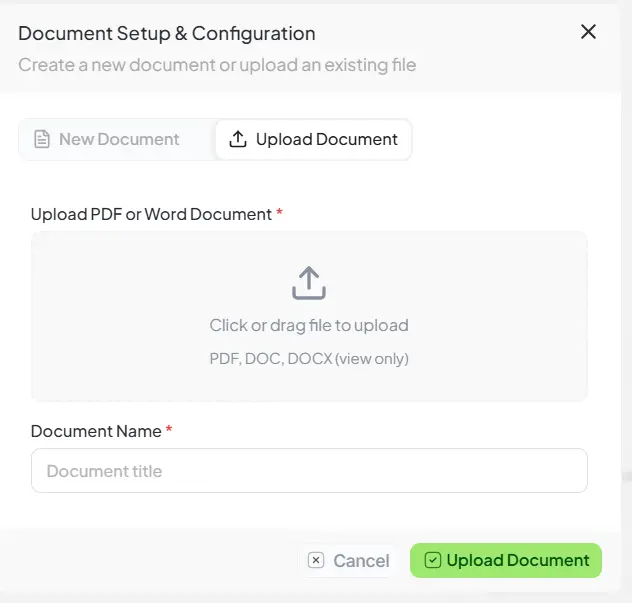
Upload document interface
Upload Fields
- Document Type: Select from predefined types (required)
- Upload Files: Drag & drop or browse (max 10MB per file)
- Description: Add notes or context (optional)
- Assign To: Choose internal user or external contact
- Expiry Date: Set document validity period (optional)
Best Practices
Organization
- Use clear naming conventions
- Organize in logical folders
- Tag for easy discovery
- Archive old documents
Collaboration
- Set appropriate permissions
- Use comments for feedback
- Review version history
- Coordinate real-time editing
Content Management
- Use consistent formatting
- Include table of contents for long docs
- Link related documents
- Regular content reviews
Templates
- Create reusable templates
- Standardize document formats
- Use for common workflows
- Update templates regularly