Guest Login Overview
The Guest Login feature allows external users such as clients, partners, or vendors to securely access specific areas of your workspace without needing a full user account.
Guests can view shared projects, assigned tasks, communicate with team members, and access shared documents while maintaining security boundaries.
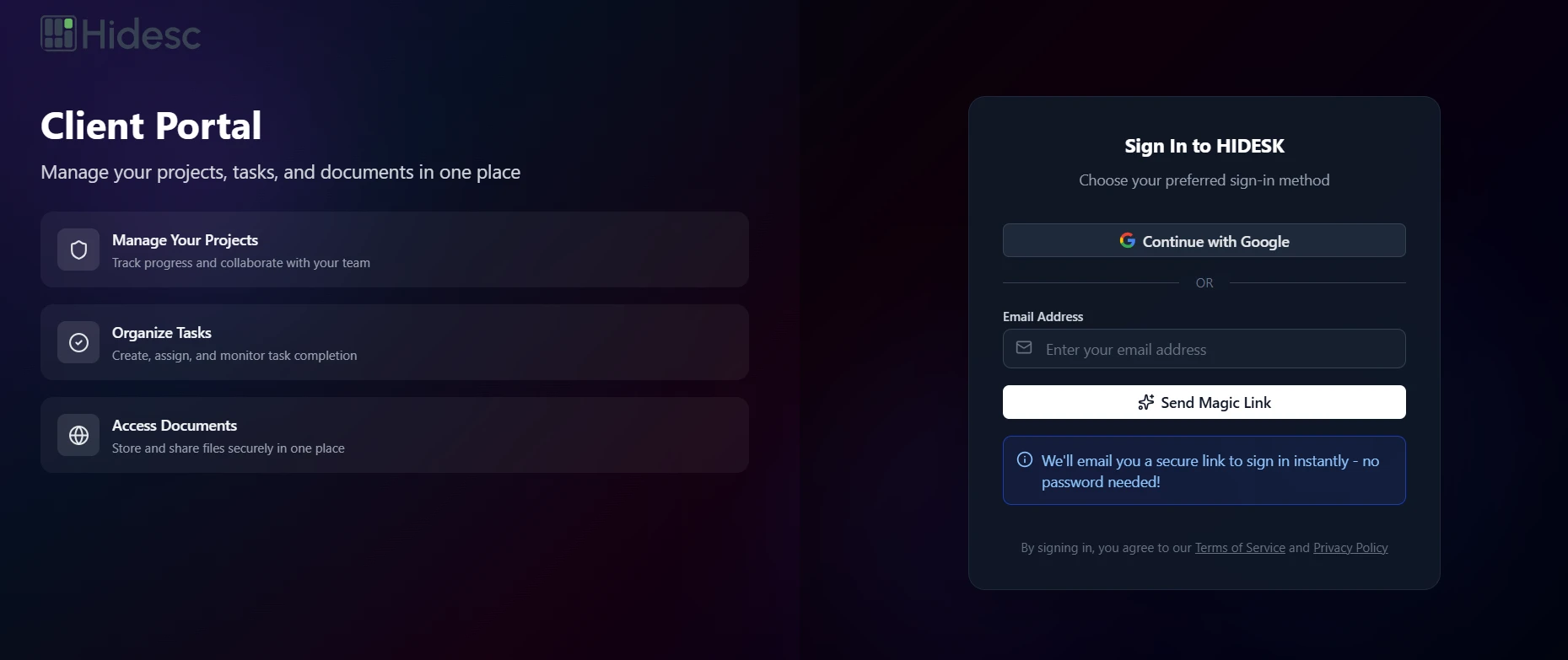
Guest login portal
Key Benefits
Simplified Collaboration
Enable external collaboration without granting full system access
Secure Sharing
Securely share updates, files, and communications with clients
Enhanced Transparency
Improve visibility between internal teams and external collaborators
Access and Authentication
Login URL
Guests access the portal via (your-domain)/client
Sign-in Options
Continue with Google or Email login using Magic Link
Passwordless Authentication
Secure magic links sent to registered email
Token-based Security
Encrypted authentication for data protection
Guest Dashboard
After logging in, guests see a personalized dashboard with access to their assigned content.
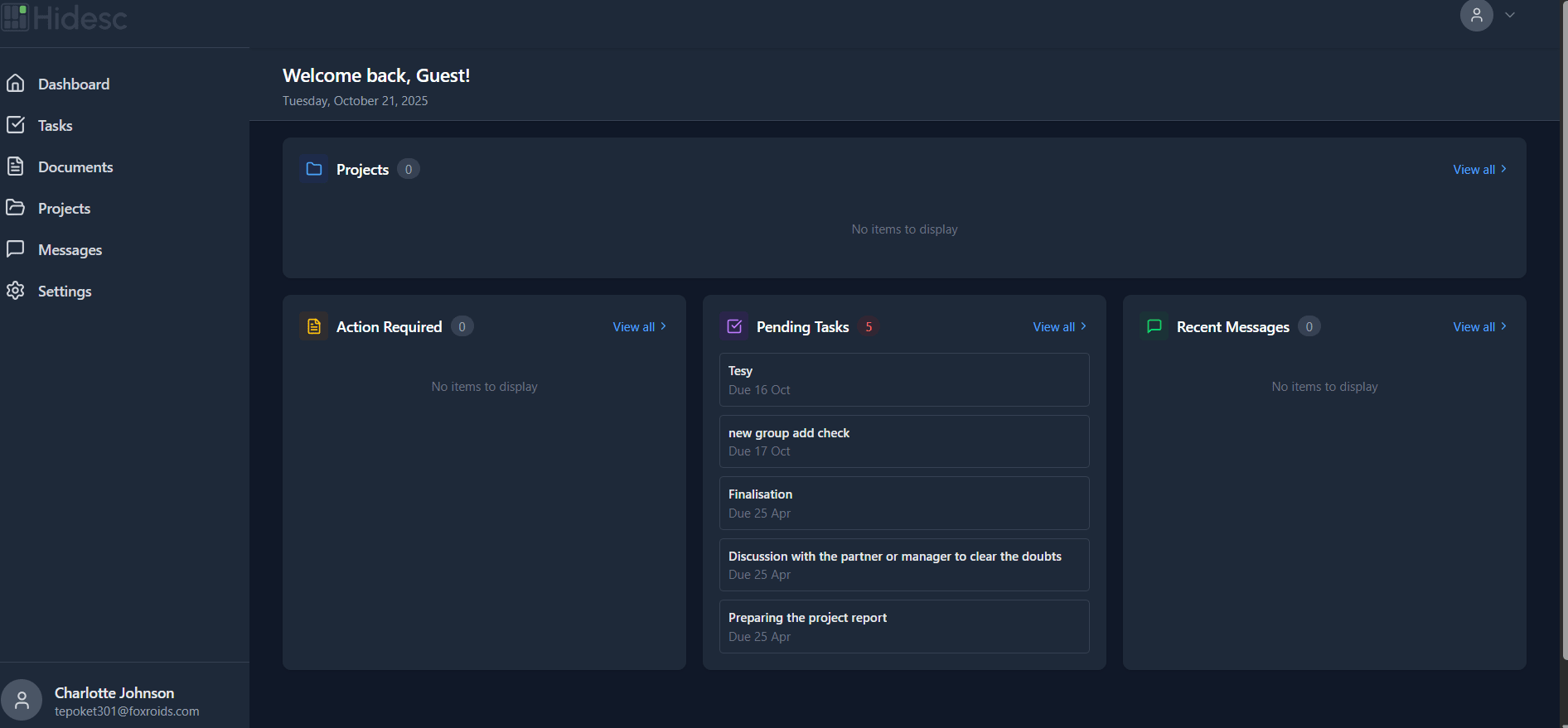
Guest dashboard interface
| Section | Description |
|---|---|
| Projects | View shared projects and project progress |
| Tasks | View assigned tasks with due dates and statuses |
| Documents | Access shared files and attachments |
| Messages | Communicate with internal team members |
| Settings | Manage profile and notification preferences |
Guest Capabilities
Task Management
- View assigned tasks and project tasks
- Check task details and statuses
- Add comments and updates
- Upload files to tasks
Chat and Messaging
- Send and receive messages
- Share task-related updates
- Attach files in messages
- Real-time communication
Document Sharing
- Upload and share files
- Download approved documents
- View shared attachments
- Supported: Images, PDFs, Word, Excel
Notifications
- Email notifications
- Task update alerts
- Document upload notifications
- New message alerts
Guest Messaging
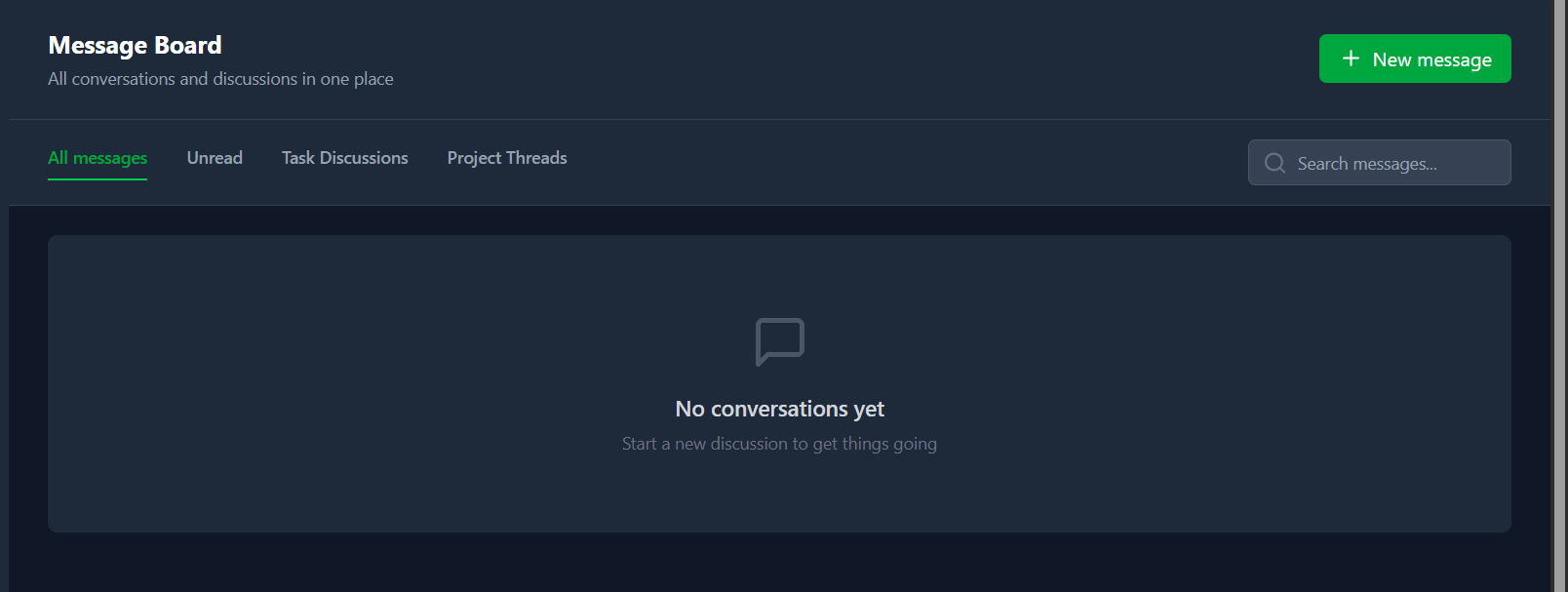
Guest chat and messaging interface
Security and Privacy
Guest access is secured with multiple layers of protection.
Access Control
All guest activities are limited by permissions set by Admin
Data Isolation
Guests cannot view other clients' projects or internal-only data
Encryption
Files and chat attachments are encrypted during transfer
Session Management
Sessions automatically expire after inactivity
Guest Settings
Guests can manage their profile and preferences from the Settings section.
Profile
Update profile photo and details
Notifications
Manage email notification settings
Appearance
Switch between Light, Dark, or System theme
Security
View active sessions and devices
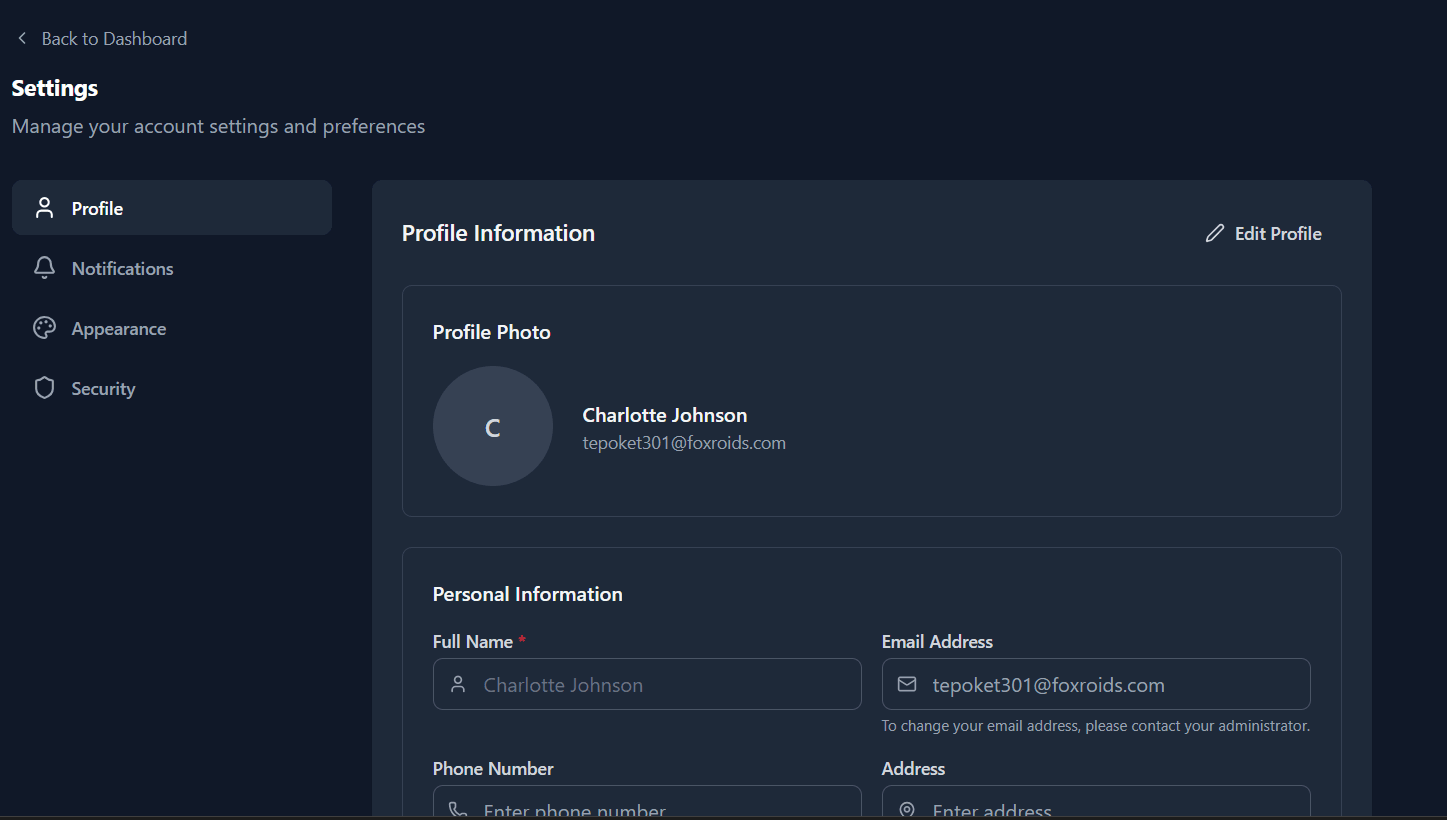
Guest profile settings
Inviting Guests
Enable Guest Login
Go to Settings > Guest Login and enable the feature
Add Guest User
Add the client as a guest user with their email
Configure Permissions
Set what the guest can view and access
Share Projects
Assign projects and tasks to the guest
Guest Logs In
Guest receives magic link and accesses the portal
Best Practices
Limit Guest Permissions
Only grant access to necessary projects and tasks
Review Guest Access Regularly
Audit and remove guests who no longer need access
Use Guest Login for Clients
Ideal for sharing project progress with external stakeholders
Set Clear Communication Channels
Configure chat permissions to control message visibility