Projects Overview
Projects in Hidesc organize and manage work related to specific initiatives. Each project houses tasks, allowing you to divide work into manageable units and facilitate collaboration across teams and departments.
Projects can be configured with specific templates, team members, schedules, and budgets, providing a complete view of all work in one place.
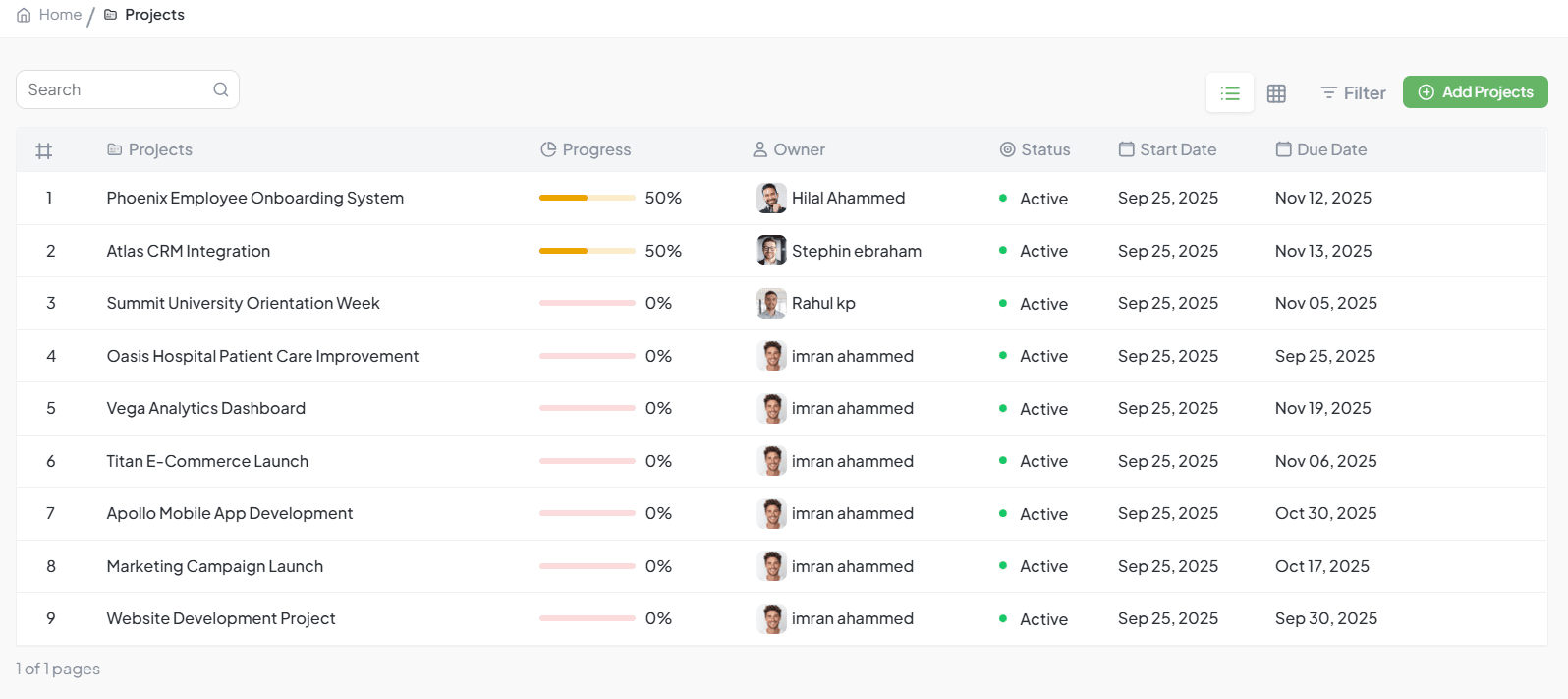
Project list showing all projects in the organization
Project Features
Centralized Work
All tasks organized in one place
Team Collaboration
Share work across team members
Progress Tracking
Monitor task completion and status
Budget Management
Track project costs and budgets
Timeline Control
Set start and end dates
Template Assignment
Link templates to projects
Creating a Project
Go to Projects
Navigate to the Projects section from the sidebar
Click Add Project
Click the "Add Project" button to open the form
Enter Project Details
Fill in name, description, dates, and budget
Assign Templates
Select which templates can be used in this project
Add Team Members
Invite users who will work on this project
Save Project
Click Save to create the project
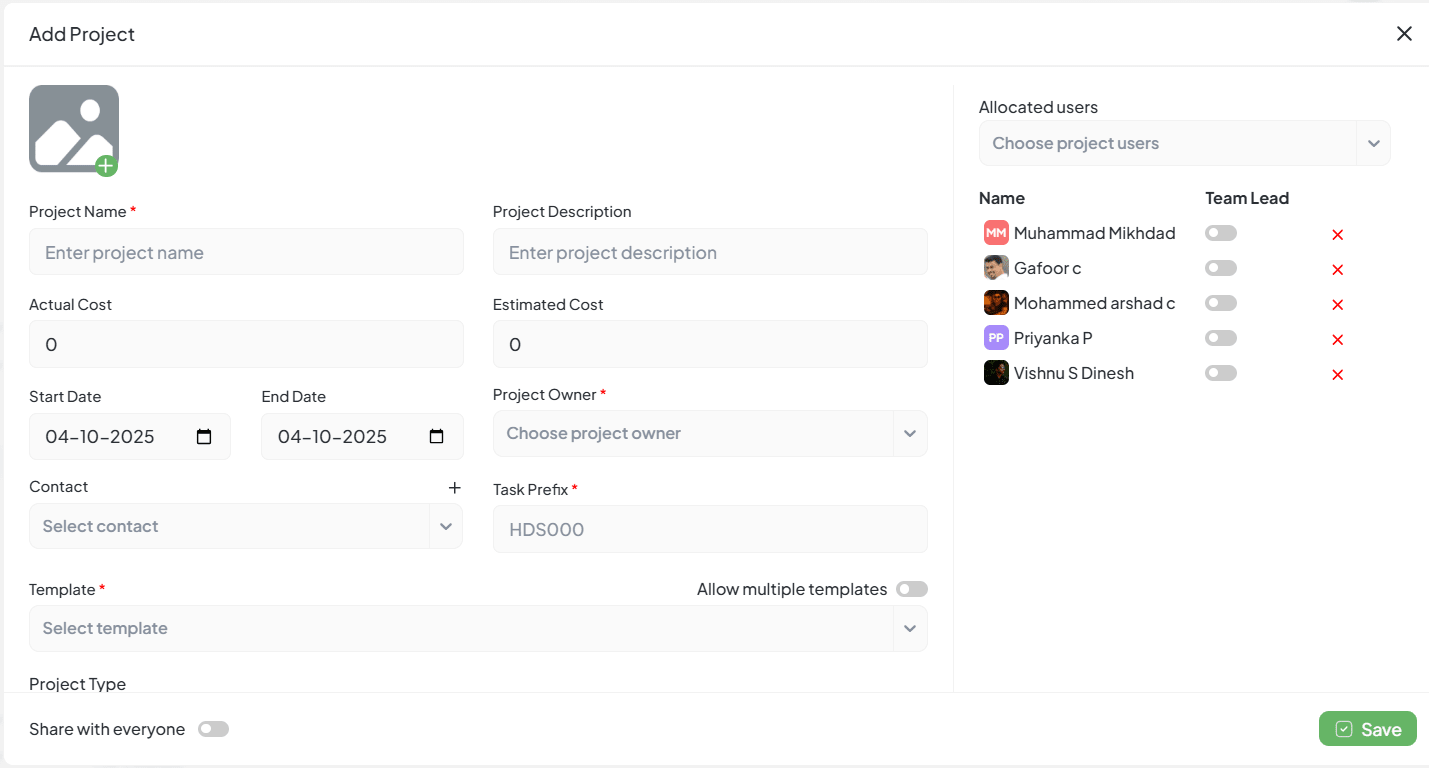
Project creation form
Project Fields
| Field | Description |
|---|---|
| Project Name | A clear, descriptive name for the project |
| Description | Summary of the project's purpose and goals |
| Project Cost | Budget allocated for the project |
| Start Date | When the project begins |
| End Date | Target completion date |
| Project Owner | Person responsible for the project |
| Templates | Task templates available in this project |
| Team Members | Users who can work on project tasks |
Project Types
Hidesc supports different project types to match your workflow needs:
Standard Project
- Traditional project management
- Fixed start and end dates
- Budget tracking
- No time-boxing
Sprint Project
- Time-boxed iterations
- Sprint planning and tracking
- Velocity metrics
- Backlog management
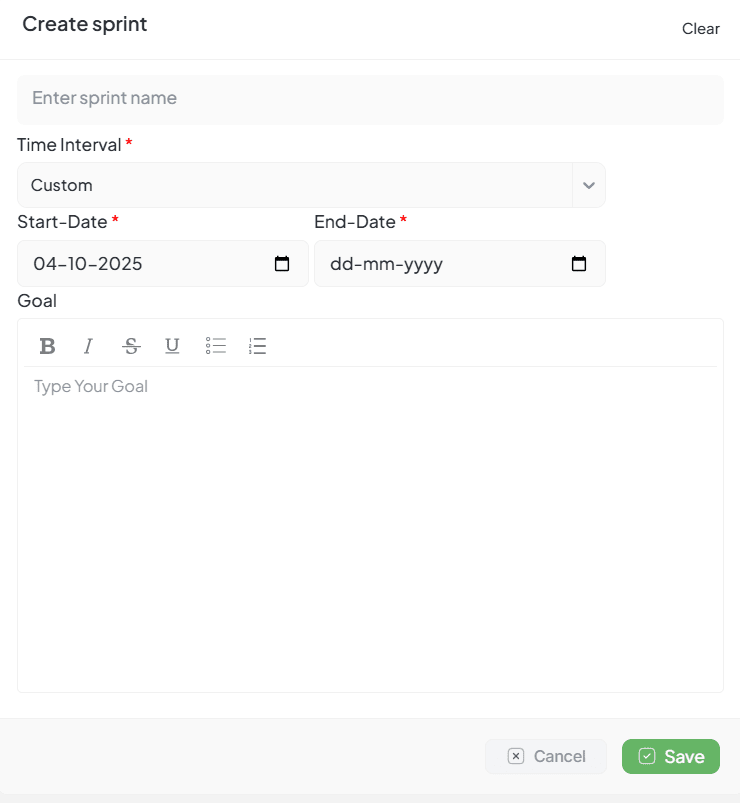
Setting up a sprint-based project
Project Views
View project work in different formats to suit your needs:
List View
Table format with sorting and filtering
Board View
Kanban-style visual management
Calendar View
Tasks displayed by due date
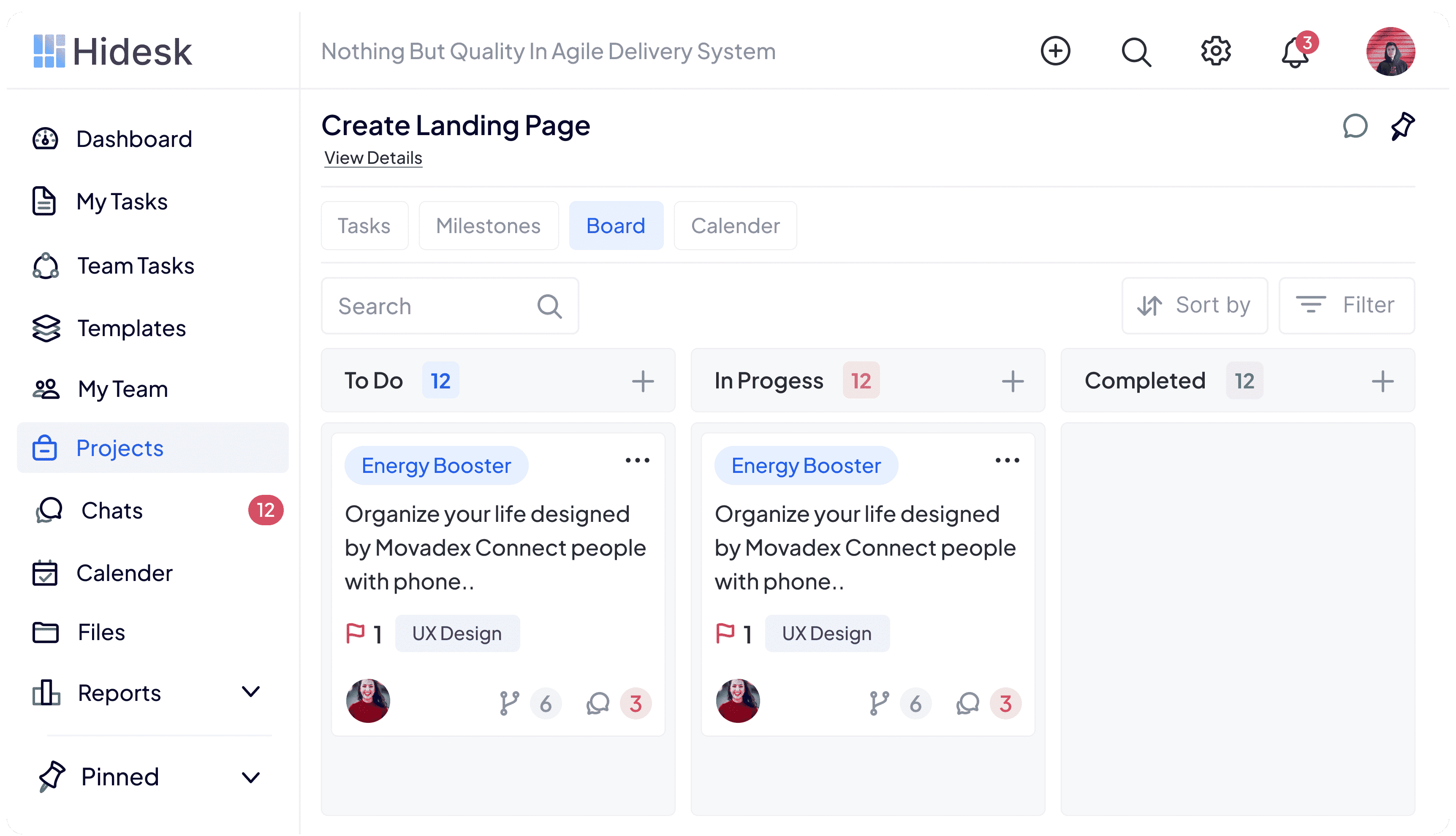
Kanban board view of project tasks
Managing Project Team
Control who has access to each project and what they can do:
Adding Members
- Open the project settings
- Go to the Team section
- Click "Add Member"
- Search and select users
- Assign appropriate role
| Role | Permissions |
|---|---|
| Project Owner | Full control over the project |
| Project Manager | Manage tasks and team members |
| Member | Work on assigned tasks |
| Viewer | Read-only access |
Tracking Progress
Monitor project progress through various metrics and views:
- Task Completion - Percentage of tasks completed vs total
- Status Distribution - Tasks by status (To-Do, In Progress, Done)
- Timeline View - Visual timeline of project tasks
- Budget Tracking - Actual vs planned budget
- Team Workload - Task distribution across members
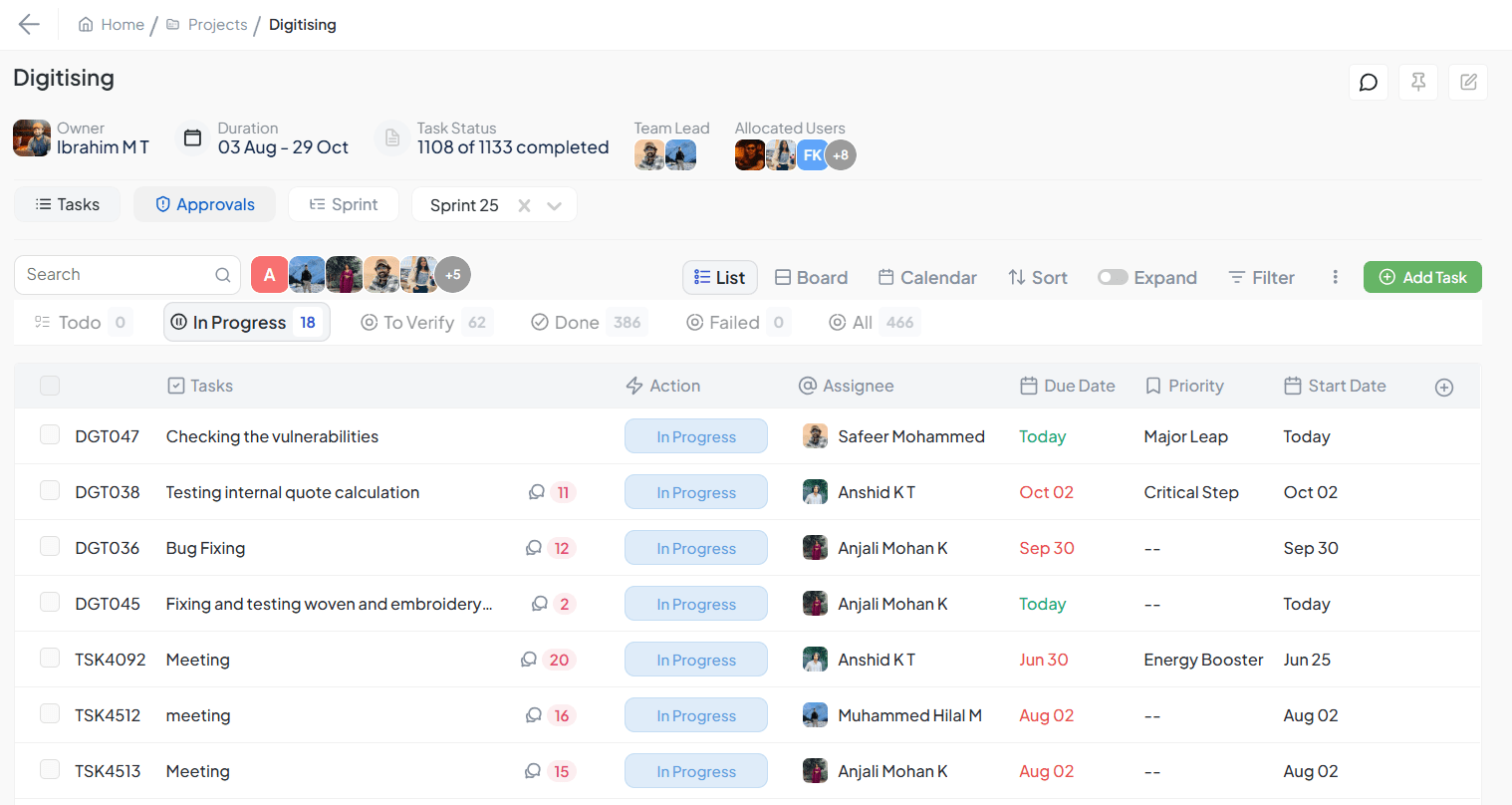
Project single page view with progress tracking
Project Channels
Create discussion channels within projects for topic-based team communication.
Channel Features
- Create channels for different topics
- All project members can participate
- Message history is preserved
- File sharing within channels
Creating Channels
- Open project and go to Channels tab
- Click "Add Channel"
- Enter name and description
- Set as public or private
Project Documents
Store and collaborate on project-related documents in a centralized location.
Centralized Storage
All project files in one accessible location
Version History
Track changes and restore previous versions
Collaborative Editing
Work on documents together with team members
Access Control
Set permissions for viewing and editing
Project Activity
Track all project changes with a complete activity timeline and audit trail.
| Activity Type | Description |
|---|---|
| Task Updates | Task creation, status changes, assignments |
| Comments | Comments and discussions on tasks |
| File Uploads | Documents and attachments added |
| Member Changes | Team member additions and removals |
Project Milestones
Define key checkpoints to track major deliverables and project progress.
Milestone Features
- Key dates and deliverables
- Link tasks to milestones
- Progress based on linked tasks
- Visual timeline display
Creating Milestones
- Open project Milestones tab
- Click "Add Milestone"
- Enter name, date, description
- Link relevant tasks
Project Approvals
Request and manage approvals for items within the project.
Submit for Approval
Request sign-off from designated approvers
Multiple Approvers
Configure sequential or parallel approval workflows
Approval History
Track all approval decisions and feedback
Notifications
Automatic alerts for pending and completed approvals
Best Practices
Use Clear Naming Conventions
Name projects descriptively for easy identification
Set Realistic Timelines
Plan start and end dates based on actual capacity
Assign Appropriate Templates
Only link templates needed for this project
Review Progress Regularly
Monitor task completion and address blockers
Archive Completed Projects
Keep the project list clean by archiving finished work