1. What is a Workspace?
A Workspace is the top-level container used to organize work in the system. It acts as a shared or private environment where users can manage all their professional assets in one place.
Core Components:
Private Workspace
Only the creator has access. Ideal for personal tasks or sensitive preparation.
Shared Workspace
Multiple users collaborate inside the same environment. Separation by team, department, or client.
2. Creating a Workspace
Creating a workspace allows users to group related projects, lists, channels, and documents under one organized space.
| Field | Description |
|---|---|
| Workspace Icon | Visual identifier for the workspace (auto-generated or customizable). |
| Workspace Title * | Name of the workspace (e.g., Internal Team Workspace, Client Operations). |
| Description | Optional: Brief explanation of the workspace purpose. |
| Share With Team |
Toggle Switch:
OFF ➔ Personal Only
ON ➔ Shared with selected
members
|
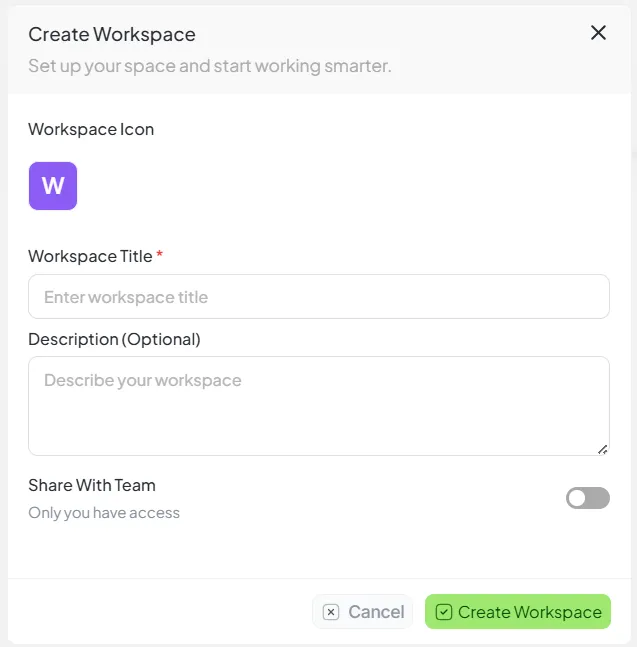
Intuitive workspace creation interface
3. Workspace Dashboard
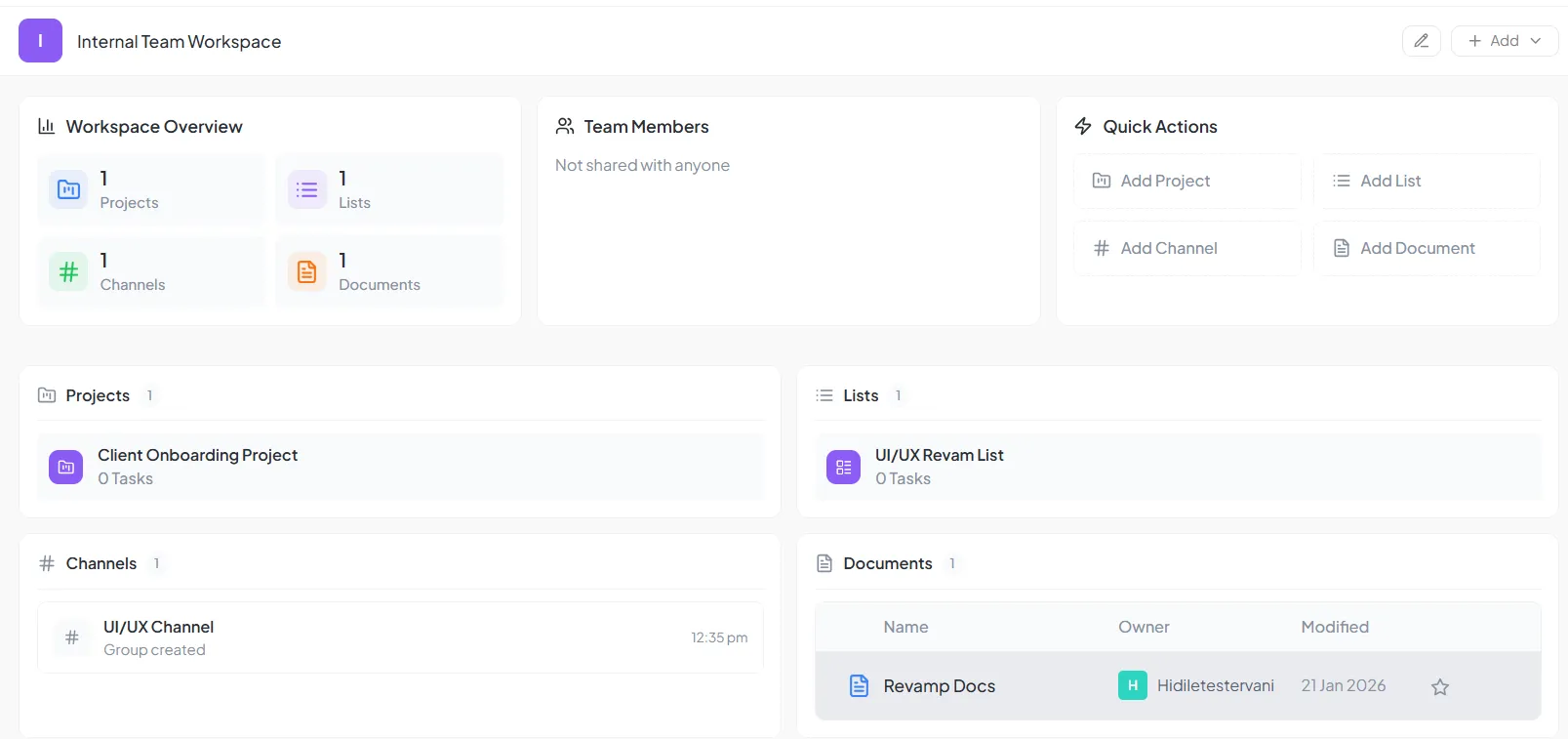
The Workspace Single Page acts as the central hub for everything happening inside a specific workspace.
3.1 Workspace Header
Marketing Department
3.2 Workspace Overview
3.3 Team Members
Private: “Not shared with anyone”
Shared: Shows member avatars and names.
Member Roles
3.4 Quick Actions
4. Projects
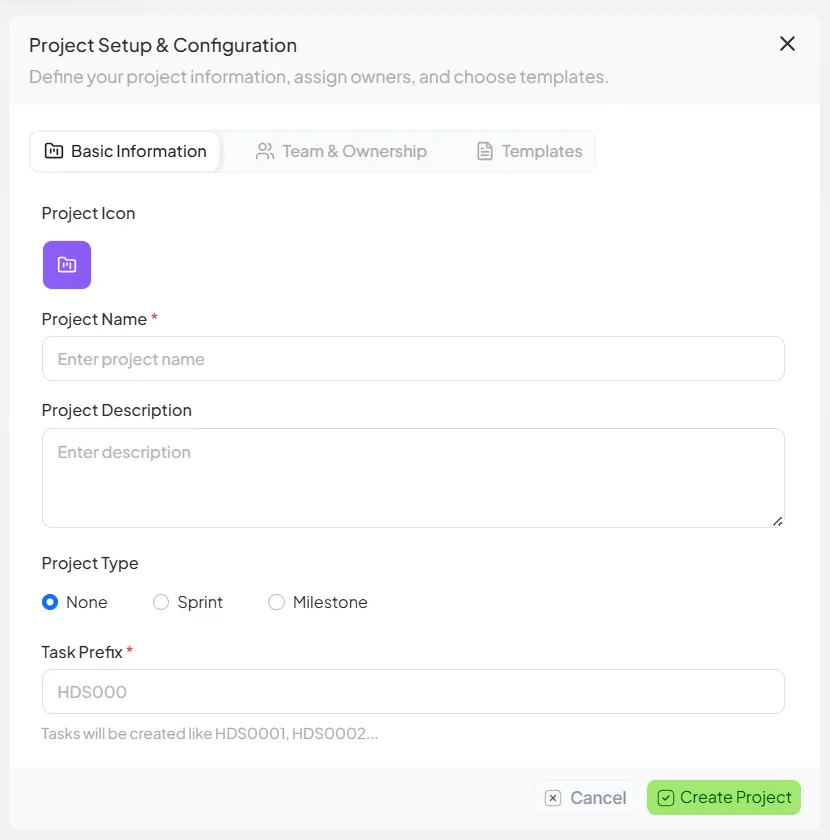
Projects represent structured work with ownership, task flow, and timelines. They are used for long-term initiatives that require detailed tracking.
Basic Information
Define icon, name, and project type (Sprint, Milestone, or None).
Team & Ownership
Assign Owner, Contact Person, and Allocated Users.
Templates
Pick pre-configured task lists and custom workflows for speed.
Automated Task IDs: HDS0001, HDS0002...
5. What a List is
Simplified Workflow
Functionally identical to Projects
A List provides the same task management capabilities as a Project but without the complexity of "Types". It is designed for straightforward work streams.
✕ Not Included
- • No Sprint Management
- • No Milestone Tracking
- • No Type Selection
✓ Included
- • Full Task Capabilities
- • Customizable Statuses
- • Document Linking
6. Channels
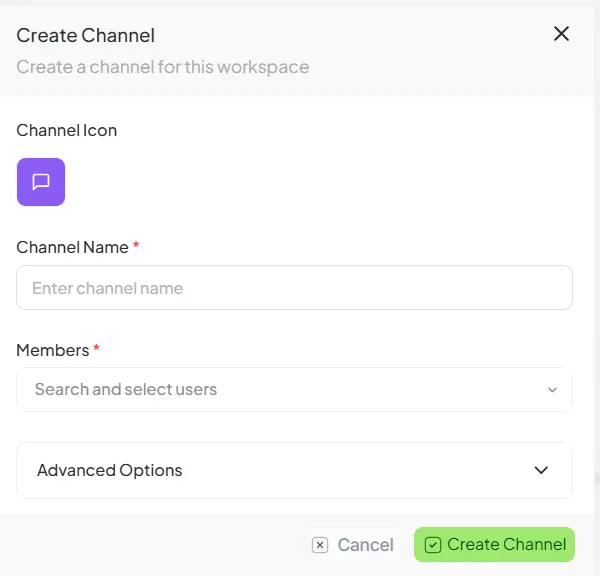
Channels enable secure, topic-based communication inside a specific workspace. They keep discussions contextualized and organized.
Workspace Specific
Channels live only within the workspace they were created in.
Member Control
Only selected members of the workspace can view and participate.
7. Documents
Store and manage workspace-level knowledge. Documents act as a centralized library for SOPs, research, and client information.
Document List View
| Document Name | Owner | Last Modified | Favorite |
|---|---|---|---|
| 📄 Branding Guidelines 2026 |
JD
Jane Doe
|
12 Feb, 2026 | ★ |
| 📂 Q1 Audit Reports |
AS
Alan Smith
|
05 Feb, 2026 | ☆ |