Task List Overview
The Task List is your personalized workspace to manage and track all your tasks efficiently. Whether you're working solo or as part of a team, this view provides everything you need to stay organized and productive.
Task List Dashboard
Task List Interface
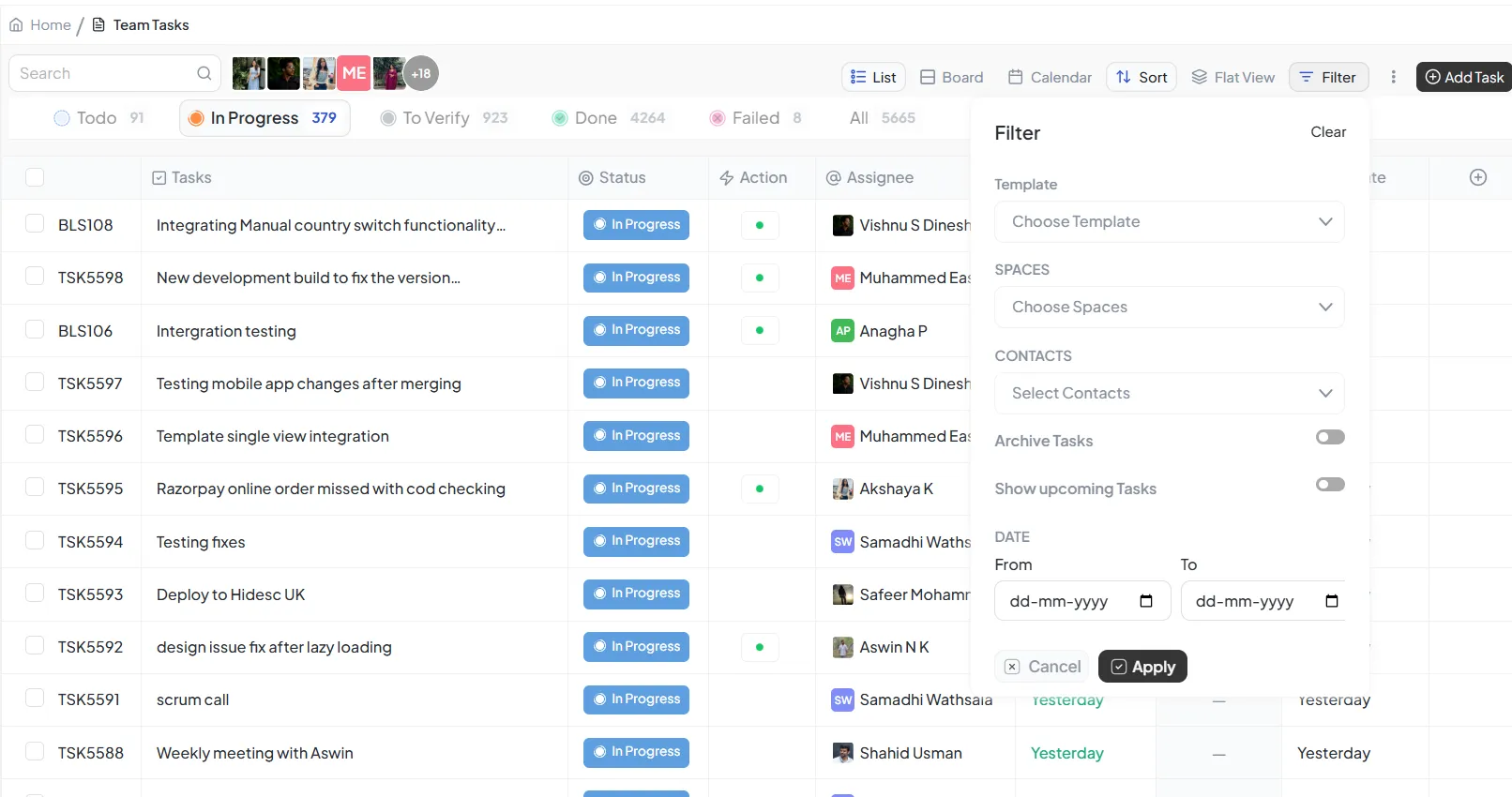
Complete task management workspace with filtering and status tracking
Add Task Functionality
Create new tasks with detailed information including assignee, due date, and priority
Multiple Views
Switch between List, Board, Calendar, and Bulk Edit views
Add Task Functionality
Add Task Option
Location
Located at the top-right corner of the Task List View
Button Label
Add Task (with a "+" icon)
Functionality
Click Add Task to open the task creation form
Fill in task details such as title, description, assignee, due date, priority, and recurrence
Save the task, and it will appear in the list according to its selected status
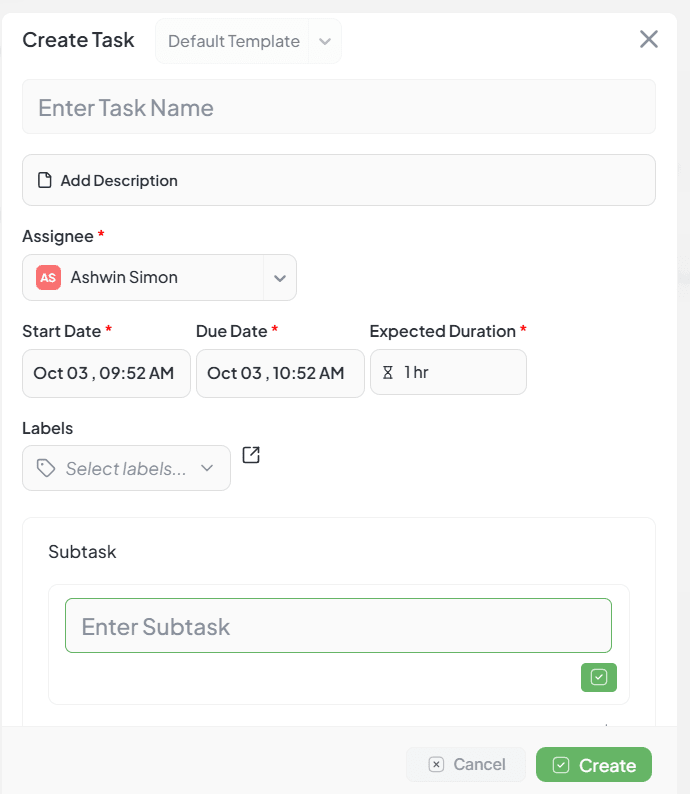
Task creation form with detailed configuration options
Task Column Details
| Column | Description |
|---|---|
| Checkbox | Select tasks for bulk actions |
| Task # | Task ID for easy tracking |
| Task Name | The title/description of the task. Recurring tasks are marked with recycle icon |
| Action | Shows the current status. Includes play/stop/complete buttons for time-based tasks |
| Assignee | The person responsible for the task |
| Due Date | Deadline to complete the task |
| Priority | Task importance (e.g., Critical Step, Major Leap) |
| Start Date | When the task begins or began |
Time Control Features
Time Control (For Time-Based Tasks)
Start
Begins tracking time for the task
Stop
Pauses tracking time for the task
Complete
Marks the task as done and moves it to To Verify if verification is required
Search & Filter Features
Search Functionality
Search Bar Location
At the top-left of the Task List view with a magnifying glass icon
Search by Task Name
Type the name of the task (full or partial text)
Search by Task Identifier
Enter the prefix or number to directly find the task
Key Benefits
Faster Navigation – No need to browse through long lists
Accurate Results – Supports both names and unique identifiers
Time-Saving – Ideal for projects with a large number of tasks
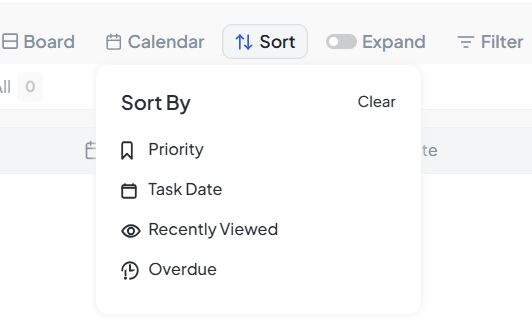
Sort tasks by due date, priority, or recently viewed
Advanced Filter Options
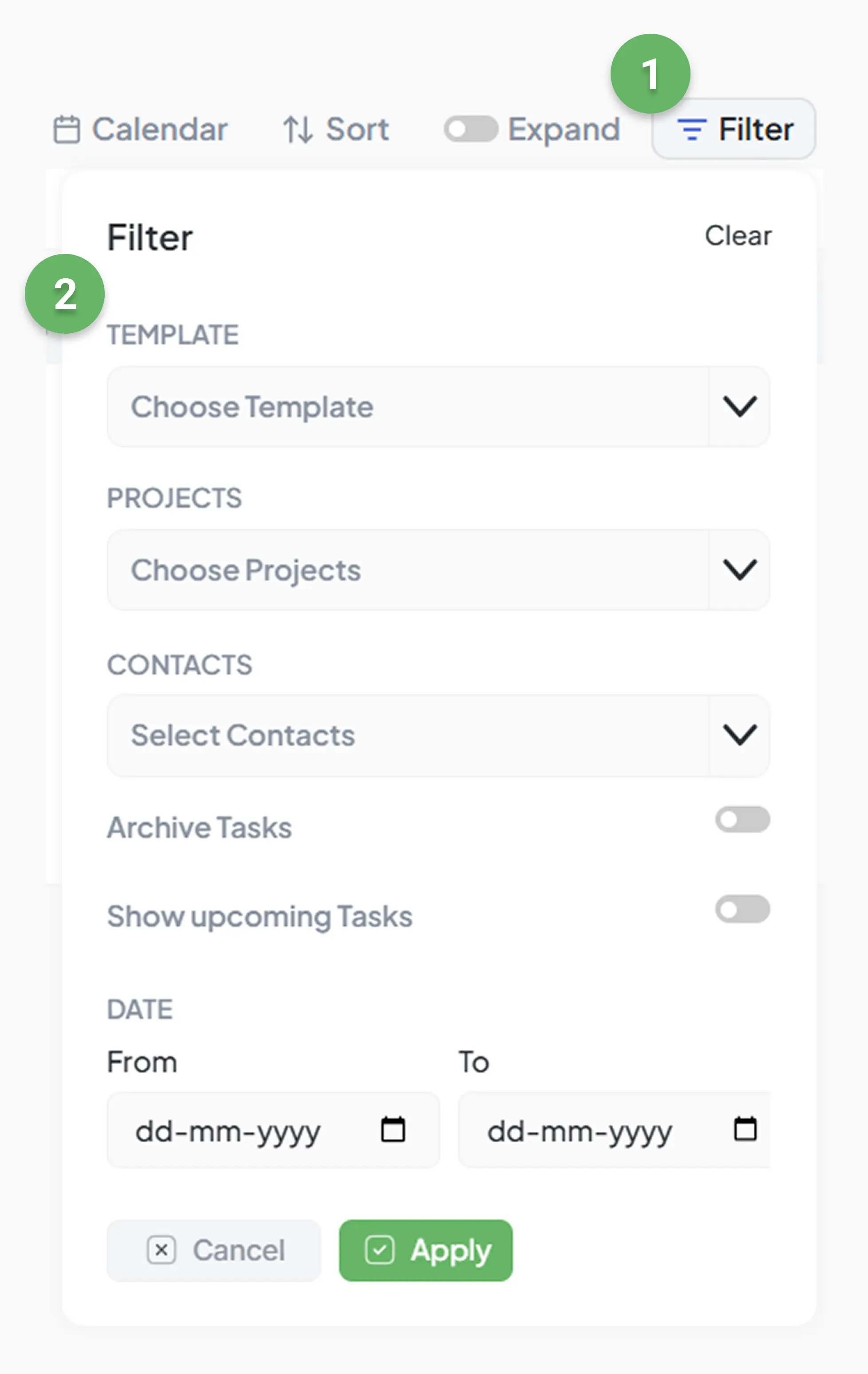
Advanced filtering options for task management
1. Template Filter
Filter tasks based on pre-defined templates and approval stages
Stage 1 is only for approval
Testing - check approval - reporting user off
Check related - with approval
2. Date Filter
Select specific date ranges to display tasks within chosen periods
From: Date picker for the start date
To: Date picker for the end date
3. Priority Filter
Filter tasks based on priority level with clickable tags
Critical Step: High-priority tasks
Major Leap: Important tasks
Energy Booster: Motivational tasks
4. Label Filter
Filter tasks based on assigned labels and categories
New--Engineering Project
Critical Bug
Development
Expand/Collapse Features
Expand Option
Shows full task details including description
Displays assigned user(s) and due date
Shows tags/labels, subtasks and dependencies
Collapse Option
Shows only essential task information
Task title and assignee avatar
Due date if set
Benefits
Space Saving
Saves screen space when handling a large number of tasks
Improved Focus
Shows details only when needed for better concentration
Task Management Features
Task Duplication
Steps for Duplication
Select Task to duplicate
Click Duplicate button
System creates copy with identical details
Redirect to To-Do tab to view new task
Task Deletion
Deletion Confirmation Required
User must enter "confirm delete" to proceed
Removes all related subtasks and reminders
Stops recurring instances and clears chat history
Export/Import Functionality
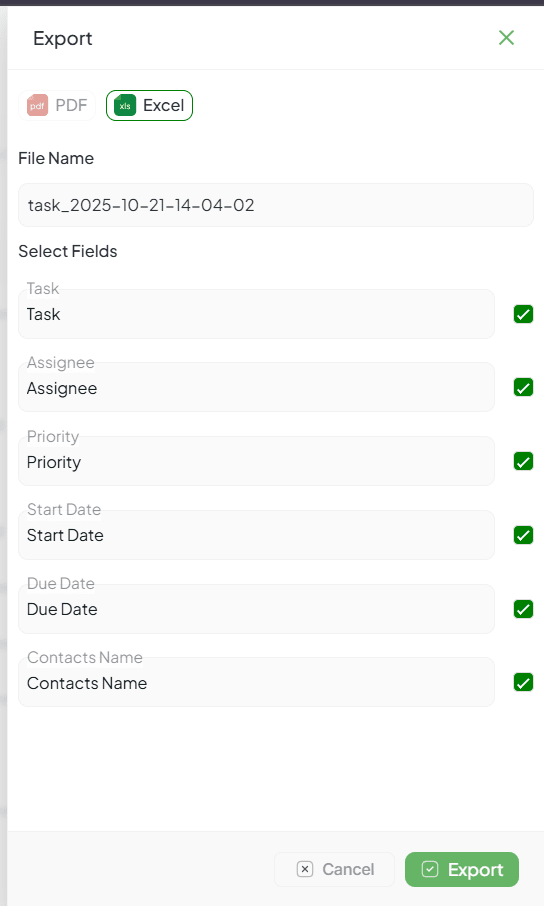
Export tasks to PDF or Excel format
Export Functionality
Export Formats
PDF or Excel (XLS) format
Selectable Fields
Task, Assignee, Priority, Start Date, Due Date, Client's Name
Import Functionality
Bulk Upload
Upload CSV file with task data
Template Available
Download sample CSV file for correct formatting
Add More Fields using Widgets
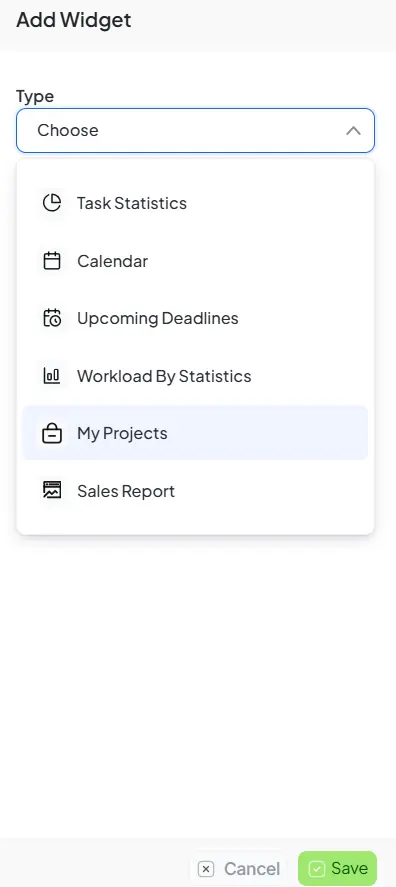
Customize task list fields using widgets
How It Works
Open Widget Menu
Click on the "+" icon in the Task List header
Select Fields to Display
Choose from available fields with toggle switches
Rearrange Field Order
Drag and drop fields using the drag handle
Key Benefits
Customizable View – Personalize according to workflow
Quick Access – Enable important fields instantly
Flexible Layout – Rearrange fields based on preference
Streamlined Tracking – Show only relevant information