Task Single Page
This page provides a detailed view of a selected task within the Team Tasks module. It includes task metadata, associated actions, subtask management, and collaboration tools.
Task Single Page Dashboard
Task Single Page Interface
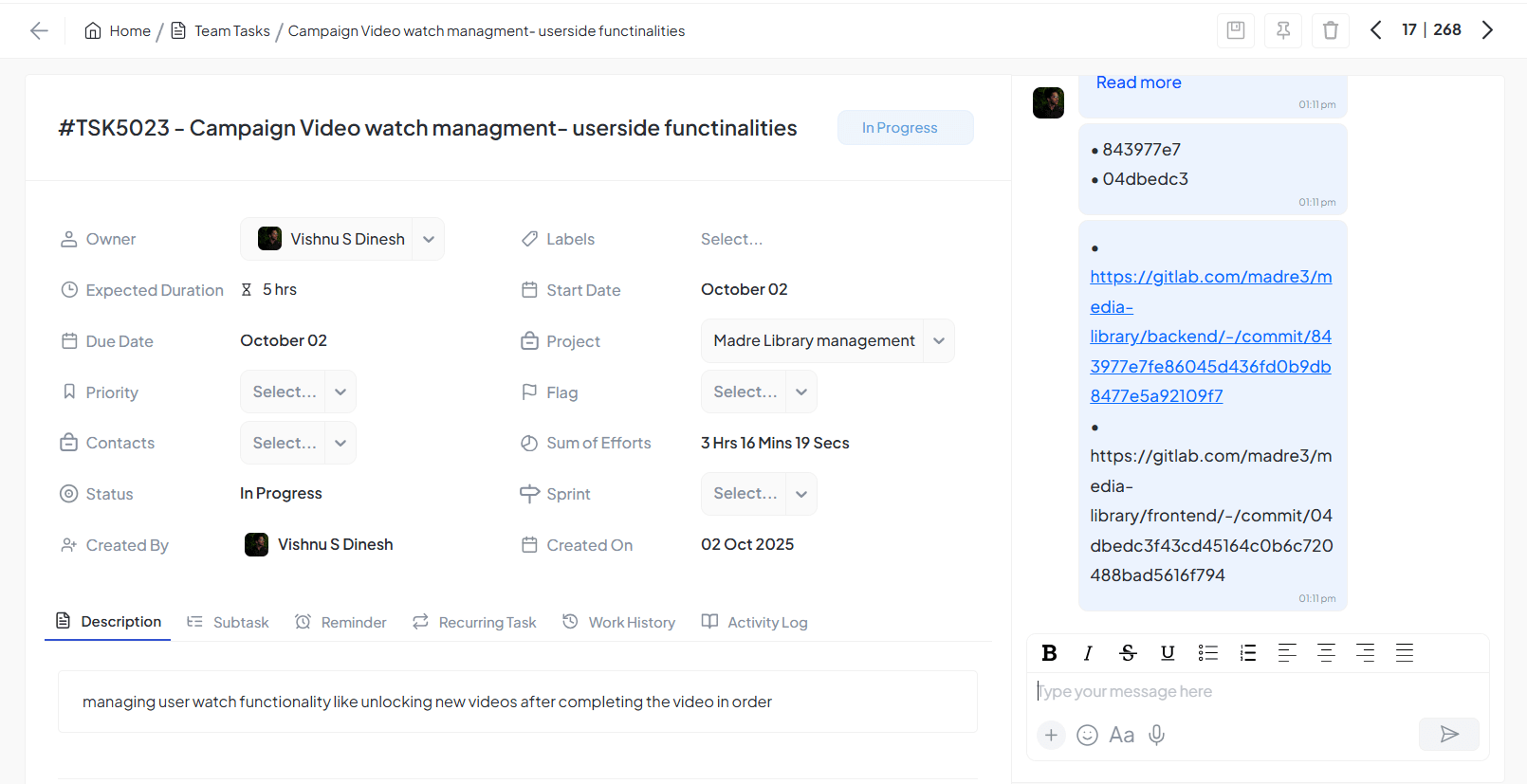
Detailed task view with metadata, actions, and collaboration tools
Header Section
Breadcrumb navigation, task title, and action buttons based on task status
Task Information
Complete metadata including owner, due date, priority, and project details
Header Section
Navigation & Title
Breadcrumb Navigation
Shows the navigation path — Home / Team Tasks / Task Name
Task Title
Displayed prominently at the top
Action Buttons
Start / Resume / Pause
Mark as Complete
Approve / Reject
Task Information Section
Owner
Displays the user assigned as the task owner
Labels
Displays associated labels or tags for categorization
Due Date
Task's deadline
Flag
Dropdown to optionally mark the task with a custom flag
Project
Associated project name
Created By
The user who created the task
Start Date
The task's start date and time
Expected Duration
Duration expected to complete the task
Priority
Dropdown showing priority level
Sum of Efforts
Shows accumulated effort from subtasks or manual entry
Contact
The client associated with the task
Created On
Date when the task was created
Attachment Section
Access Control
Visible To
Users assigned to the task, Their reporting users, Admins
Purpose
Upload photos, documents, or reference files directly related to the task (not via chat)
Actions Allowed
Task-assigned users can upload and view attachments
Reporting users can view the attachments
Admins have full access to view all attachments
Benefits
Supervisor Monitoring
Ensures relevant supervisors and admins can monitor all supporting documents
Centralized Space
Provides a centralized space for task-related files separate from chat media
Workflow Support
Facilitates approval workflows, audits, and progress reviews
Tab Section
| Tab | Description |
|---|---|
| Description | Used to add rich-text descriptions related to the task |
| Subtask | Shows a list of all subtasks under this task with + Add button to create new subtasks |
| Reminder | Used to set up one-time or recurring reminders |
| Recurring Task | Options to repeat the task based on a schedule (e.g., daily, weekly) |
| Work History | Logs task progress and time entries made by the assignee |
| Log | Activity log showing updates and changes made to the task |
Next and Preview Section
Features
Task Navigation
Next Button moves to next task, Preview Button moves to previous task
Task Context
Automatically loads selected task's details page with all information updated dynamically
Consistency Across Filters
Navigation respects current filter, sort, or search settings
Benefits
Saves time by avoiding back-and-forth navigation
Helps in quick reviewing during meetings or approvals
Improves task management efficiency
Provides smooth workflow for reviewing multiple tasks
User Experience
Clear Placement
Navigation buttons placed clearly at the top for easy access
Continuous Flow
Users can review tasks sequentially one by one without interruptions
Comment / Chat & Collaboration Section
Rich-text Editor
Formatting tools (bold, italic, underline, bullets, etc.) for detailed comments
Media Support
Emoji and voice message support for enhanced communication
Collaboration Features
Add comments, updates, or tag teammates for seamless team collaboration