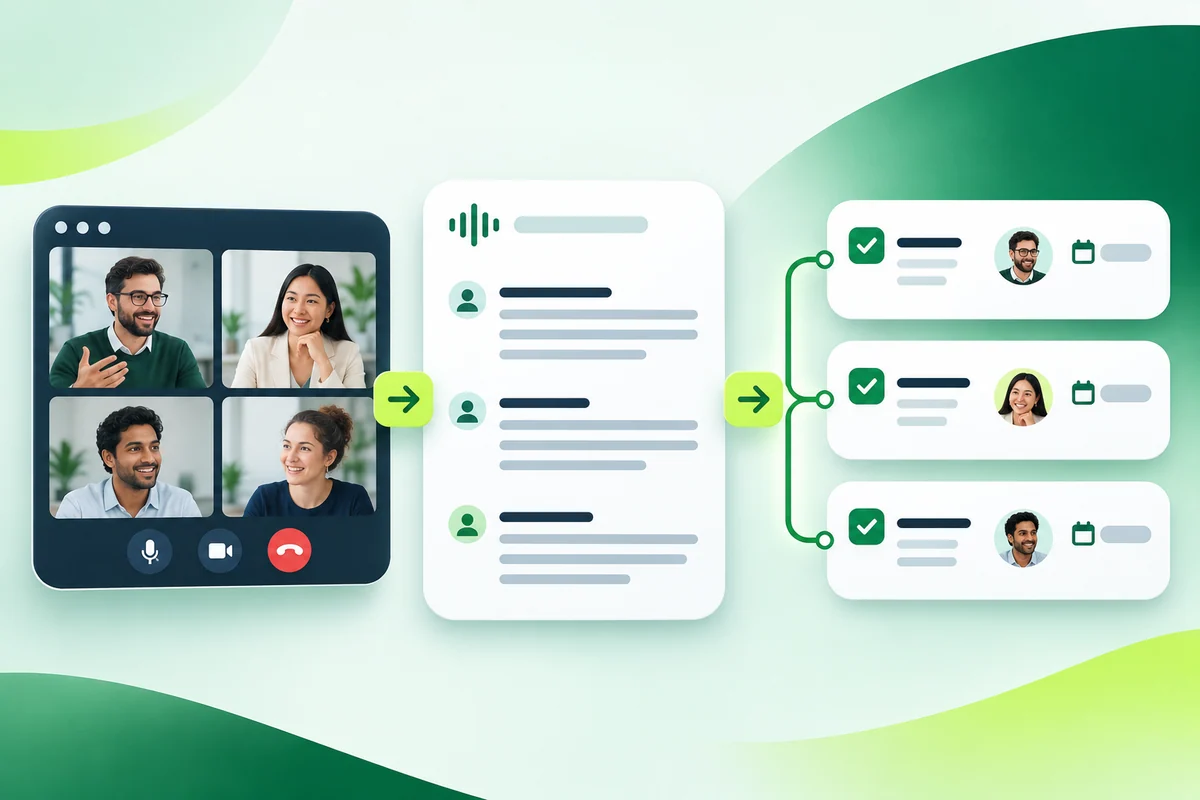
Online meetings are more useful when decisions become clear responsibilities and work that can be tracked. Meeting transcripts and notes can help make that transition by capturing the discussion and surfacing possible follow-up actions.
Google Meet, Microsoft Teams and Hidesc offer different approaches to meeting capture and collaboration. The important question is not simply whether a meeting is documented, but how the team uses that record to organize what happens next.
From Discussion to Delivery
Imagine a project review that ends with three agreements: update a proposal, confirm the budget and prepare a presentation. Everyone understands the direction, but the meeting ends without clear task ownership.
A transcript alone does not solve that problem. The team still needs to distinguish suggestions from commitments, confirm responsibilities and record deadlines in its task management application.
Use the meeting record as supporting context, not as a substitute for a task. Each work item should explain what needs to be delivered, who owns it and how completion will be checked.
Transcripts, Notes and Tasks
A transcript captures spoken discussion, while AI-generated notes condense selected points into a more readable record. Meeting tools may also suggest next steps or recommended tasks, depending on their features and configuration.
The outputs have different purposes:
- Transcript: Go back to the discussion and look at the exact wording.
- Meeting notes: Summarize key issues, decisions and proposed next steps.
- Task: Manage a confirmed deliverable, responsible person and deadline.
Keep these roles separate. An action mentioned in a summary should become an assigned task only after the team confirms the agreement.
Advantages of task management
Capture actions to follow up
Google Meet’s AI notes can feature suggested next steps, and Teams intelligent recap offers AI-recommended tasks. These give the organizer a starting point for reviewing follow-up work.
Check suggestions against the conversation before adding them to the task list. “Consider revising the proposal” is not the same commitment as “Send the revised proposal on Thursday.”
Clarify Ownership and Deadlines
Teams meeting notes allow participants to create and assign tasks. Hidesc also provides task assignments and deadline management.
Whichever application the team uses, confirm the owner and due date rather than inferring them from a vague discussion. Record dependencies, such as an approval needed before design begins.
Keep Important Context
Google Meet transcripts are saved in the organizer’s Drive and Teams provides meeting material through recap. These provide references for reviewing what was discussed.
Add the relevant requirement or an appropriately permissioned source link to the task. For example, explain why a registration form must remain unchanged instead of recording only “update the website.”
Support Absent Colleagues
Google Meet shares generated notes according to the organizer's settings, while Teams provides recap access to meeting material. Use these records to prepare a concise handover for absent colleagues.
Share the decision, assigned work and necessary background rather than forwarding the entire transcript. Check each recipient's access to the discussion.
Three Application Examples
These examples cover standalone meeting applications and a task management application with an integrated meeting workflow. Google Meet and Teams illustrate meeting capture and follow-up; Hidesc illustrates API-connected meeting services behind its own interface.
| Application | Meeting capture | Task follow-up |
|---|---|---|
| Google Meet | Automated transcripts and Gemini-generated notes, subject to eligibility and settings. | Review suggested next steps; eligible accounts with the relevant rollout can add action items to Google Tasks through post-meeting routines. |
| Microsoft Teams | Transcripts and intelligent recap with AI notes and recommended tasks, subject to licensing and policy. | Review recommendations and use collaborative meeting notes to create and assign tasks. |
| Hidesc | Hidesc-designed meeting and transcript interface, transcripts stored within Hidesc, and API integration options including Daily.co, Google Meet and Teams. | Create tasks from transcripts and forward relevant transcript content to task chat. |
Google Meet: Actionable Tips
Google Meet includes automated transcripts and Gemini's “Take notes for me” organizes notes in Google Docs and suggests next steps on eligible plans. Review the output and record confirmed work in the chosen task application.
Google also announced routines that can be set after a meeting to add action items to Google Tasks, with a broader rollout starting in October 2026. Availability varies by edition, settings, and rollout; AI note-taking must be enabled during the meeting.
Microsoft Teams: Review & Assign
Teams intelligent recap provides AI generated notes and suggested tasks with right licenses and policies. You need Teams Premium or Microsoft 365 Copilot and the appropriate Teams licenses.
Participants can also create and assign tasks in collaborative meeting notes. An AI-recommended action remains a proposal for review, not proof that someone accepted responsibility.
Hidesc: Meetings Connected to Tasks
Hidesc provides its own meeting and transcript interface, supported by API integrations with providers such as Daily.co, Google Meet and Microsoft Teams. Meeting transcripts are stored within Hidesc, where users can review discussions, create tasks from agreed actions and forward relevant transcript content to task chat.
The distinction is between the underlying meeting service and the workspace people use. Hidesc designs the interface and connects stored transcript content with task management; the integration is not merely a link to a separate meeting application.
For example, after discussing changes to a client proposal, a project manager can create a task and forward the relevant transcript content to its chat. Team members can then clarify requirements, share files and continue collaborating within the task.
A Practical Meeting-to-Task Process
Apply the same routine across meeting platforms:
- Define the outcome. Establish whether the meeting should produce an approval, decision or action plan.
- Explain meeting capture. Inform participants when transcription or AI note-taking is active and follow privacy requirements.
- Confirm commitments. State each deliverable, owner, deadline and dependency before ending the discussion.
- Review the output. Check important details; AI summaries may be incomplete or inaccurate.
- Create confirmed tasks. Record agreed work using supported task-creation features where available.
- Keep context accessible. Add relevant discussion or a source link; in Hidesc, forward transcript content to task chat.
- Track delivery. Update task status and use meetings for blockers and decisions.
Accuracy and Access Matter
AI summaries can be inaccurate, so review names, figures, dates and commitments before treating them as instructions. Do not turn a suggestion into an approval because it appears in generated notes.
Google and Teams apply access restrictions to meeting material. Before sharing transcript content in any task or chat, check the audience and exclude unrelated confidential information.
Frequently Asked Questions
Can Any Task App Be Used?
Teams can manually record confirmed actions in their chosen application. Automatic transfer depends on supported features, integrations or configured automation.
Are AI Features Always Included?
No. Google Meet features depend on eligible plans and settings; Teams intelligent recap has licensing and policy requirements.
What Is Hidesc’s Follow Up Procedure?
Hidesc connects meeting services through APIs and stores transcripts in its own designed interface. Users can create tasks from transcripts and share relevant content to task chat.